Example Combined Footing/de
 Anleitung Anleitung
|
| Thema |
|---|
| Beispiel für eine kombinierte Fundamentplatte |
| Niveau |
| Fortgeschrittene |
| Bearbeitungszeit |
| Autoren |
| Shiv Charan |
| FreeCAD-Version |
| 0.20 |
| Beispieldateien |
| Siehe auch |
| None |
Beschreibung
Das Werkzeug  Reinforcement Fundamentbewehrung ermöglicht dem Anwender, Bewehrungsstäbe innerhalb eines Fundaments (Struktur-Objekt) zu erzeugen.
Dieses Werkzeug ist Teil des  Arbeitsbereichs Reinforcement; dieser ist ein externer Arbeitsbereich, der mit dem
  Addon-Manager installiert werden kann.
In diesem Beispiel erstellen wir eine kombinierte Fundamentbewehrung, wie in der folgenden Abbildung dargestellt.

Beispiel einer kombinierten Fundamentbewehrung in einem Fundament (Arch Structure)

Rechte Ansicht des angegebenen Beispiels für eine Fundamentbewehrung

Vorderansicht des angegebenen Beispiels für eine Fundamentbewehrung
Anwendung
1. Eine vertikale Fläche eines zuvor erstellten Fundaments, ein  Arch Struktur-Objekt, auswählen, wie in der folgenden Abbildung dargestellt.
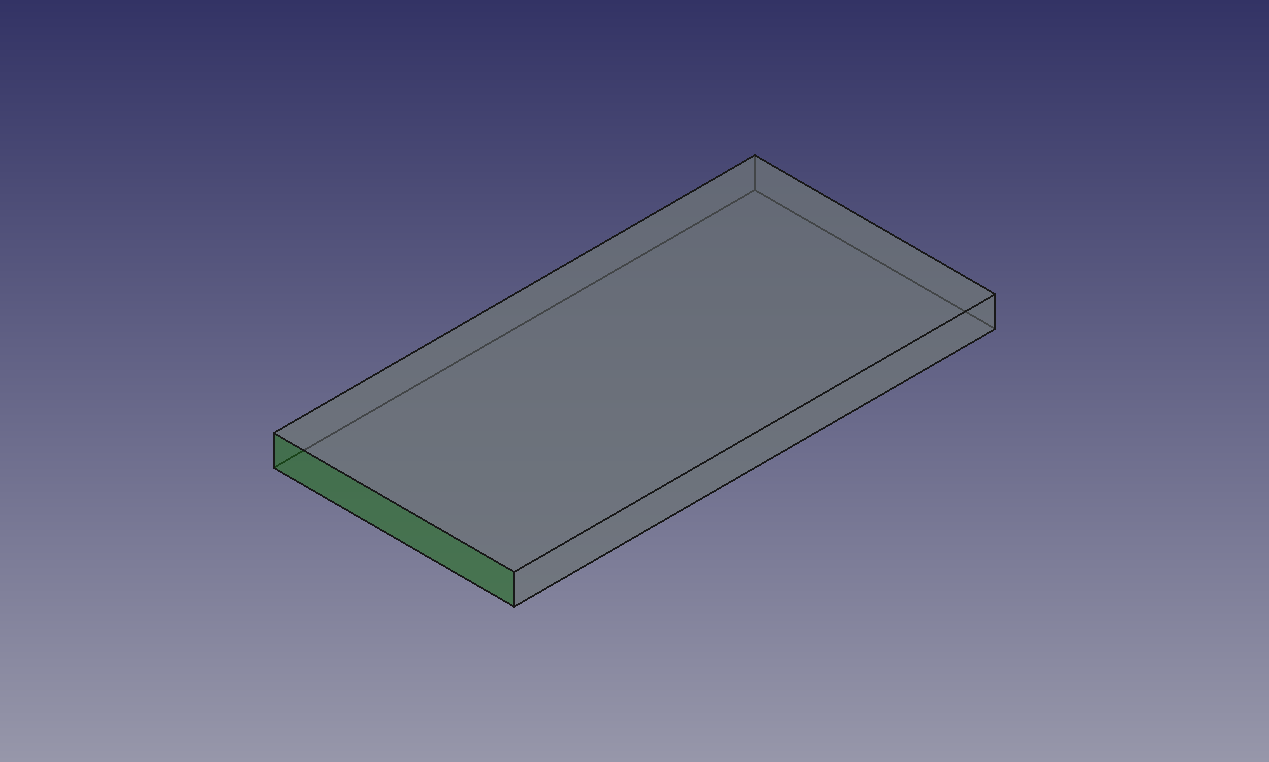
Ausgewählte Fläche für eine Fundament-Arch-Struktur

2. Dann Fundamentbewehrung in den Armierungswerkzeugen auswählen.
3. Ein Dialogfeld zur Fundamentverstärkung wird wie unten gezeigt auf dem Bildschirm angezeigt.
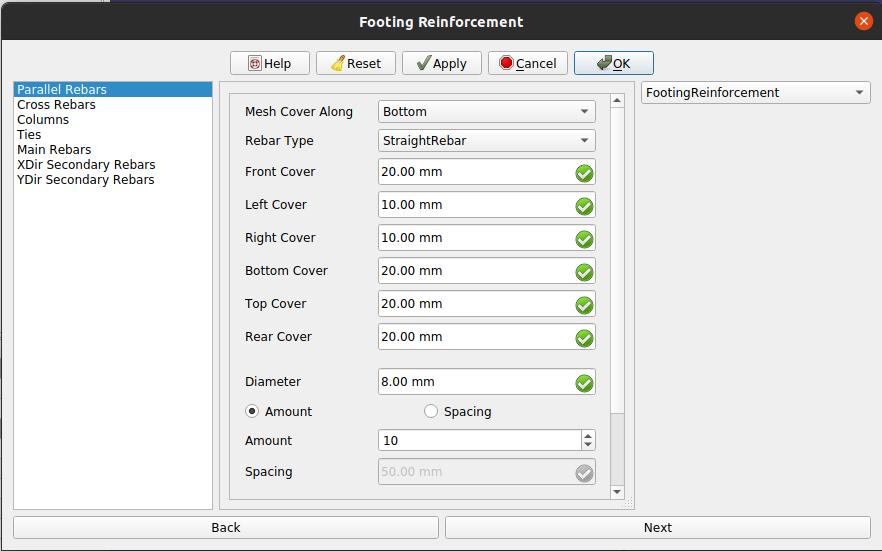
Dialogfeld für die Fundamentbewehrung

4. Den gewünschten Bewehrungstyp und andere Eingabedaten für Bewehrungsstäbe in paralleler Richtung zur ausgewählten Fläche im Fundamentbewehrungsgitter wählen, wie in der Abbildung unten gezeigt.
5. Nun auf die Schaltfläche Weiter klicken oder Querbewehrung in der Listenansicht wählen und die gewünschten Daten für die Eingabedaten für die Bewehrung in Querrichtung der ausgewählten Fläche im Fundamentbewehrungsgitter, wie in der Abbildung unten gezeigt.
6. Auf Weiter klicken oder auf Säulen in Listenansicht klicken und geben die gewünschten Eingaben für die Säulen in der Fußbewehrung eingeben. Hier kann man auswählen, ob sekundäre Bewehrungsstäbe in den Säulen hinzugefügt werden sollen oder nicht.
7. Auf Weiter klicken oder in der Listenansicht auf Verbindungen klicken und geben die gewünschten Werte für die Verbindungen in die Spalten der Fundamentbewehrung eingeben.
8. Auf Weiter klicken oder in der Listenansicht auf Hauptbewehrung klicken und die gewünschten Werte für die Hauptbewehrung in die Spalten für die Fundamentbewehrung eingeben.
Nur wenn die sekundäre Bewehrungsprüfung aktiviert ist, dann:
9. Auf Weiter klicken oder in der Listenansicht auf XDir-Sekundärbewehrung klicken und die gewünschten Werte für die Sekundärbewehrung in X-Richtung in eine Spalte der Fundamentbewehrung eingeben.
10. Auf Weiter klicken oder in der Listenansicht auf YDir-Sekundärbewehrung klicken und geben die gewünschten Werte für die Sekundärbewehrung in Y-Richtung in eine Spalte der Fundamentbewehrung eingeben.
11. Auf OK oder Übernehmen oder Fertig klicken, um die Fundamentverstärkung zu erzeugen.
12. Abbrechen anklicken, um die Dialog-Box zu verlassen.