Silk Workbench
This documentation is not finished. Please help and contribute documentation.
GuiCommand model explains how commands should be documented. Browse Category:UnfinishedDocu to see more incomplete pages like this one. See Category:Command Reference for all commands.
See WikiPages to learn about editing the wiki pages, and go to Help FreeCAD to learn about other ways in which you can contribute.

Introduction
The Silk Workbench is an external workbench that creates NURBS surfaces in FreeCAD. Silk is the new name of the NURBSlib_EVM project, and provides NURBS surface modeling tools focused on low degree and seam continuity.
Description
A NURBS is a smooth curve or surface whose form is controlled by a relatively small number of control points, which float close to the curve or surface without lying on it. As their name indicates, control points are what the user manipulates to control the curve or surface. The "refinement" of a NURBS is controlled by its degree, and the "distance of effect" of a control point is controlled by the knot vector of the NURBS.
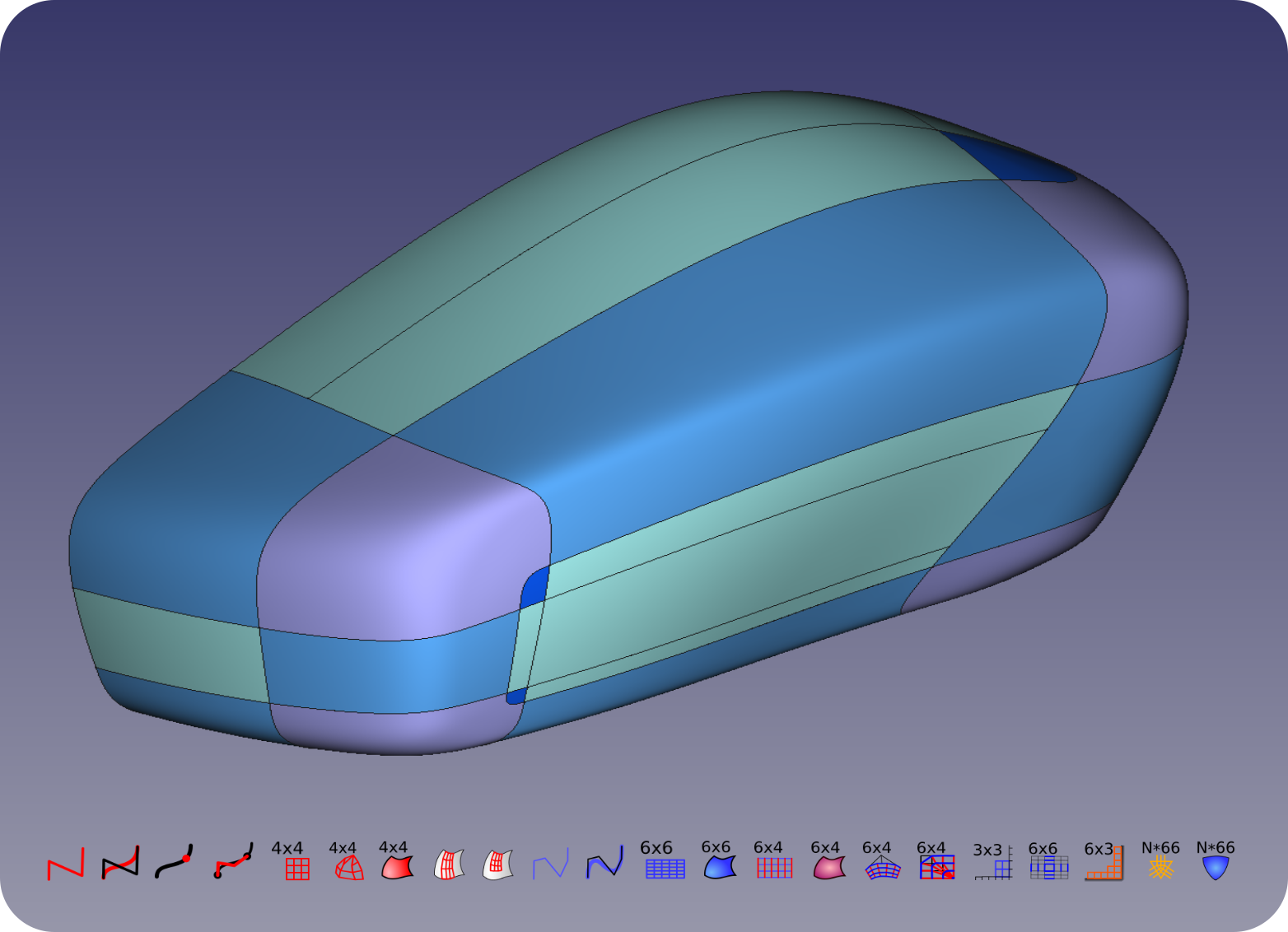
A complex surface model built entirely with Silk Workbench's NURBS tools
Low degree: Silk NURBS curves and surfaces use the minimum degree suitable for the intended goal, and knot vectors are kept to a small, consistent set. With most NURBS modeling problems, the apparent solution is to increase the degree and number of knots — while perfectly valid, this raises both the computational difficulty and the organizational challenge of managing control points. Silk aims to provide tools of the lowest mathematical complexity for each problem it solves.
Seam continuity: Silk's goal is to allow complex models to be built from individual NURBS sections — either by creating new surfaces that are continuous with existing ones, or by providing tools to create smooth transitions where surfaces were initially created with discontinuities.
FreeCAD does the heavy lifting:
- Providing a planar sketch interface that can be located anywhere in 3D space, to manipulate simple groups of very few control points (Silk can use multiple sketches in different planes to construct truly 3D curves and surface edges).
- Drawing the smooth surfaces once the appropriate control grids have been prepared using Silk tools.
Silk Workbench merely provides methods for combining these simple sketches into control point grids, which FreeCAD then converts into NURBS surfaces.
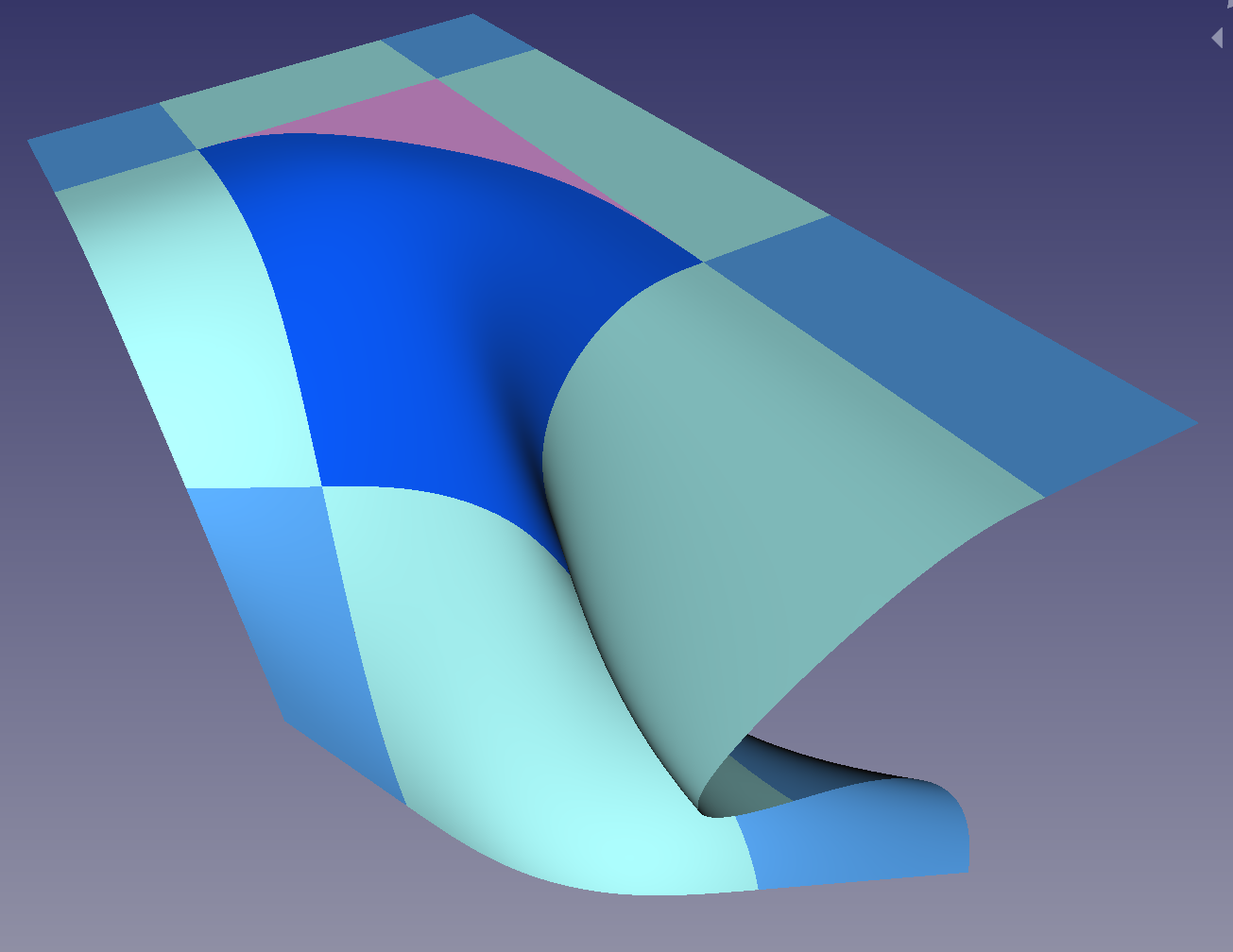
A single continuous surface folded like a handkerchief, demonstrating seam continuity across a fold
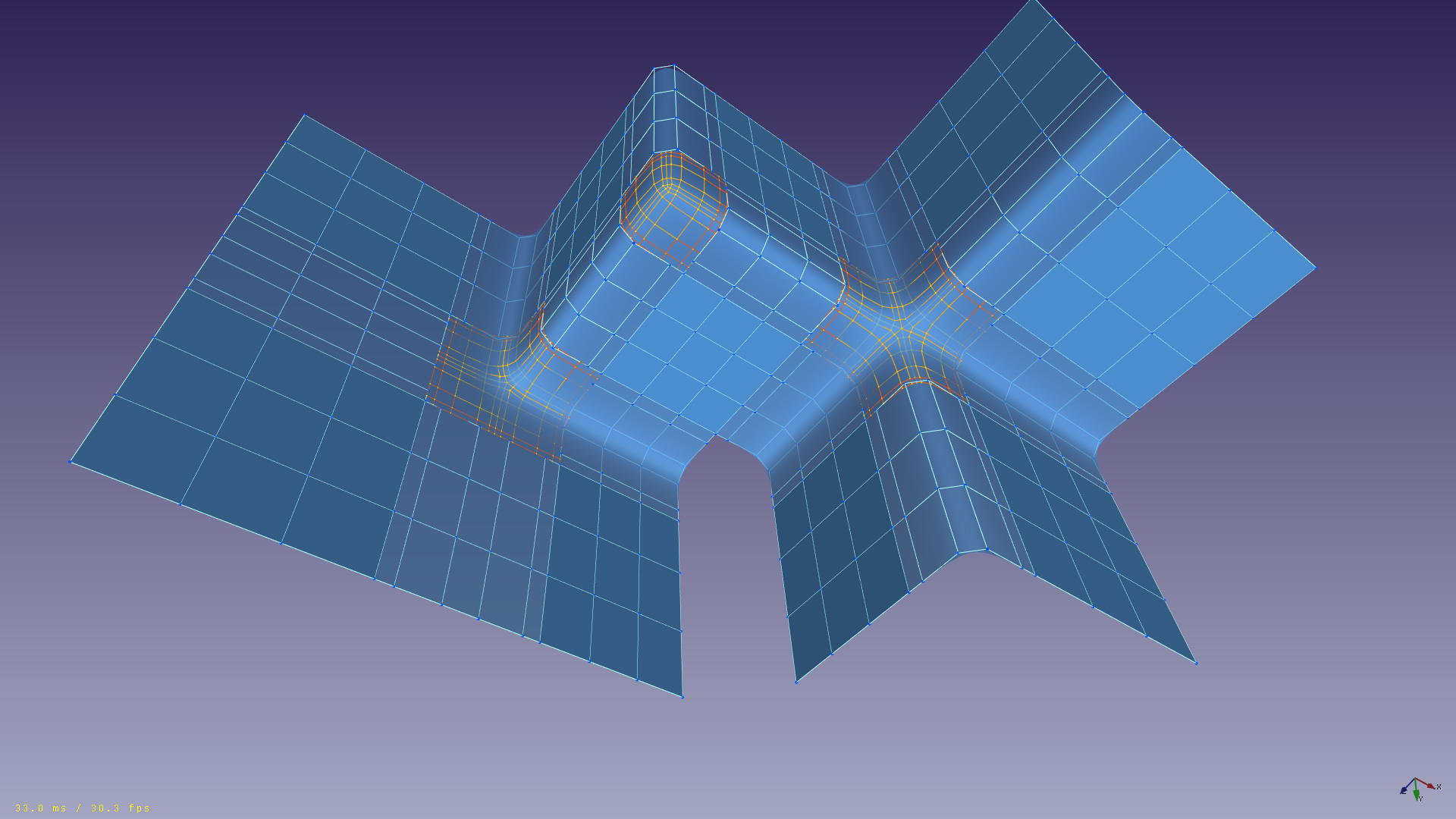
Four base surfaces blended across a shared corner using Silk Workbench's N-star blending tools
Limitations
Although Silk Workbench is intended to provide efficient and user-friendly tools in the long term, at this time it behaves more like a low-level library with GUI access to its functions. Individual functions create individual document objects, and in the future, relevant functions might be chained together automatically to create complex nested objects. The current objects are very likely to persist, both as individual document objects and as sub-objects in the future.
Modeling can be done in the current state, and the resulting data structures are efficient, but the process can be laborious. The best path forward for user-friendliness will depend heavily on the outcome of several debates within the FreeCAD community on how parts, solid bodies, assemblies, and object linking are organized.
In the meantime, Silk does offer a few tools not otherwise available in FreeCAD (e.g. 3D splines), and can in general be seen as a sandbox for surface design, control strategies, data structures, and algorithms.
Tools
The Silk tools are all located in the Silk menu and the Silk Commands toolbar that appear when you load the Silk Workbench.
 ControlPoly4: Creates a ControlPoly4 from a variety of inputs. (see also ControlPoly4 below)
 CubicCurve_4: Creates a CubicCurve_4 from a ControlPoly4. (see also CubicCurve_4 below)
 Point_onCurve: Creates a point on a CubicCurve_4 or CubicCurve_6 (also works on some curves outside of Silk). (see also Point_onCurve below)
 ControlPoly4_segment: Creates a ControlPoly4 for a segment of a CubicCurve_4, between two points on the curve. (see also ControlPoly4_segment below)
 ControlGrid44: Creates a ControlGrid44 from four connected ControlPoly4 edges. (see also ControlGrid44 below)
 ControlGrid44_Rotate: Creates a ControlGrid44 from three ControlPoly4 edges. (see also ControlGrid44_Rotate below)
 ControlGrid44_flow: Creates a ControlGrid44_flow from a ControlGrid44. (see also ControlGrid44_flow below)
 CubicSurface_44: Creates a cubic surface from a ControlGrid44. (see also CubicSurface_44 below)
 ControlGrid44_EdgeSegment: Creates a ControlGrid44 from a CubicSurface_44 and one CubicCurve_4 segment. (see also ControlGrid44_EdgeSegment below)
 ControlGrid44_2EdgeSegments: Creates a ControlGrid44 from a CubicSurface_44 and two CubicCurve_4 segments. (see also ControlGrid44_2EdgeSegments below)
 ControlPoly6: Creates a ControlPoly6 from various inputs. (see also ControlPoly6 below)
 CubicCurve_6: Creates a CubicCurve_6 from a ControlPoly6. (see also CubicCurve_6 below)
 ControlGrid66: Creates a ControlGrid66 from four connected ControlPoly6 edges. (see also ControlGrid66 below)
 CubicSurface_66: Creates a CubicSurface_66 from a ControlGrid66. (see also CubicSurface_66 below)
 ControlGrid64: Creates a ControlGrid64 from two ControlPoly4 and two ControlPoly6 objects matching on opposite edges. (see also ControlGrid64 below)
 CubicSurface_64: Creates a CubicSurface_64 from a ControlGrid64 of any type. (see also CubicSurface_64 below)
 ControlGrid64_2Grid44: Creates a ControlGrid64_2Grid44 from two ControlGrid44 objects that share a corner. (see also ControlGrid64_2Grid44 below)
 ControlGrid64_3_1Grid44: (see also ControlGrid64_3_1Grid44 below)
 ControlGrid64_normal:
 ControlGrid64_Surf44:
 SubGrid33_2Grid64: (see also SubGrid33_2Grid64 below)
 ControlGrid66_4Sub: (see also ControlGrid66_4Sub below)
 SubGrid63_2Surf64: Creates a SubGrid63 sub-grid from two CubicSurface_64 surfaces. (see also SubGrid63_2Surf64 below)
 ControlGridNStar66: Creates a ControlGridNStar66 from three or more SubGrid63_2Surf64 objects. (see also ControlGridNStar66 below)
 CubicNStarSurface_NStar66: Creates a CubicNStarSurface_NStar66 from a ControlGridNStar66. (see also CubicNStarSurface_NStar66 below)
 StarTrim_CubicNStar: Creates a StarTrim_CubicNStar object from a CubicNStarSurface_NStar66 object. (see also StarTrim_CubicNStar below)
 SilkPose:
 Reload_Silk: Reloads the Silk workbench (specifically, just its core library) without exiting FreeCAD, after making code changes.


ControlPolys
ControlPoly4

Creates a ControlPoly4 from a variety of inputs.
Usage
All sketches used must be from the Sketcher workbench.
Preselect one of the following:
- One sketch of three lines connected end to end.
- Two sketches containing a circle and a line each, where one of the line endpoints matches the center of the circle. These "Node Sketches" use the circle center to indicate an endpoint, and the line to indicate the desired tangent direction from that endpoint.
- If a single sketch is selected that does not contain three elements, the first element is converted. This works for line, arc of circle, and arc of ellipse elements. Arcs should be a quarter circle or less.
Apply the function.
This control polygon (poly) of 4 points is intended to control a cubic Bezier curve, or to control a cubic Bezier surface.
After creating the poly, you will probably want to hide the sketches used to create it, so that you can see it. Creating these objects often feels like an "extra" step, but they need to be fully understood in order to progress with NURBS.
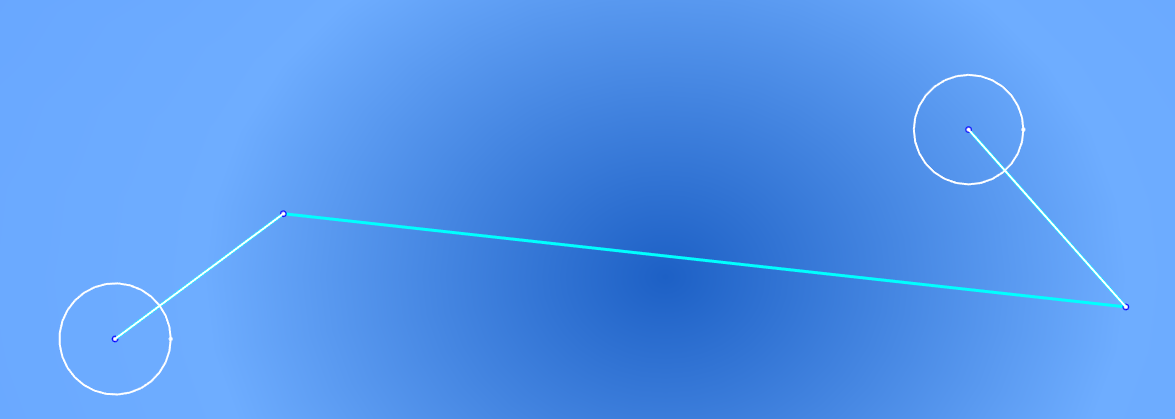
A ControlPoly4 built from two Node Sketches
Used as input for
- CubicCurve_4 (a smooth Bezier curve)
- ControlGrid44 (produces a smooth Bezier surface)
- ControlGrid44_Rotate (produces a smooth Bezier surface)
- ControlGrid64 (produces a less smooth, mixed Bezier/NURBS surface)
More information
This is the most important tool, and everything else depends on it. Give it a quick try, use the result as input for the next tool (CubicCurve_4), and then come back to read more about it.
Editing the source sketches will automatically update the poly. Curves and surfaces attached to the poly will update as well. In your sketches, make sure to set the view property "Hide dependent" to "false". This will give you live updates of polys (and curves, and surfaces) while you edit the sketches.
Since polys are used to create surfaces as well as curves, and surfaces are what we are really after, poly creation is kept as an independent step. It is important to develop a feel for how a poly controls a curve. After creating a curve/surface, edit the sketches used to create the poly and observe how the curve/surface changes.
Node sketches are intended to be placed on different planes, so that the resulting polys, curves, and surface edges are fully 3D. They are great for connecting to the endpoints of line sketches that are on different planes. Node sketches are typically created with the circle at the origin, and the sketch mapped to a new location and orientation using FreeCAD's mapping tools (found under the Data tab of the property view). In this manner, the circle is never edited, and the free endpoint of the line can be freely adjusted.
A poly used in a grid/surface can be relinked to different sketches, so that all the work of making the grid/surface does not need to be redone — simply swap the sketch link and recompute (sketch links are also found under the Data tab of the property view).
Point_onCurve

Create a point on a CubicCurve_4 or CubicCurve_6 (also works on some curves outside of Silk).
Usage
- Choose a location on the curve in the 3D view by clicking on it.
- Apply the function.
- A Point_onCurve object is placed on the curve.
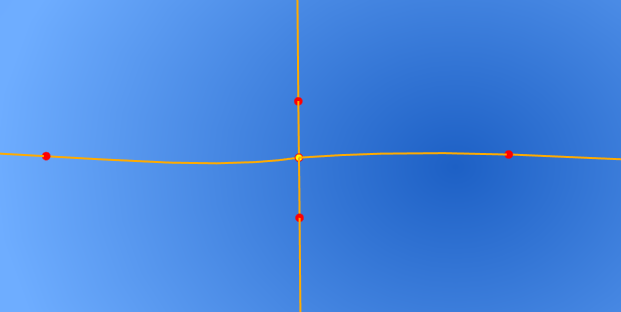
Point_onCurve markers placed along two curves, showing the u parameter
Used as input for
- The start and end points of a ControlPoly4_segment (used to cut CubicCurve_4 objects into pieces).
- A convenient way to mark a location along a curve, then place (map) a Node sketch (or anything else) at that location using the mapping tool under the Data tab of the property view.
More information
This works on curves outside of Silk, as long as they are parametrized from 0 to 1. Allowing any range would, in principle, work, but Silk would then suffer every time a user typed in "100" by greatly distorting the model — so Silk curves are prioritized over others.
The position of the point can be adjusted along the curve (0.0 to 1.0) using the u parameter found under the Data tab of the property view, allowing precise positioning anywhere along the curve. It is often not obvious which side is 0 and which is 1 — try to place the point clearly towards one end, so it is obvious whether it is closer to 0 or 1. To match the endpoints exactly, type in 0 or 1. Try to keep u values generally consistent (0.25, 0.5, 0.75, etc., or 0.1, 0.2, 0.3, 0.4, etc.), since cut values across different curves/surfaces often need to match up, and recognizing your typical values pays off.
Often, two curves to be split "in the same manner" have opposite orientation to each other. In those cases, set u of the "next" curve to 1 − u (e.g., 0.90 and 0.10) of the "previous" curve, in order to cut them in the "same" place.
FreeCAD's expression engine allows one cut value to be easily linked to another existing cut value, so that only one needs to be edited, with the rest following automatically. Given curve1 and curve2, with point1 and point2 on them:
- Set u of point2 =
point1.u(typing "=" into a data field in the property view opens the expression editor). Any change to point1.u will then automatically propagate to point2.u. If the points appear on the wrong side of the curve, instead set: - u of point2 =
1 - point1.u
Automatic matching is not strictly optional on large models, though it is not something to worry about until the model grows large. The process requires little typing: select the source point in the tree, press F2 (edit label mode), press Ctrl+C (copy the label), go to the property Data view of the point to apply the match to, click into the u field, press "=" to open the expression editor, press Ctrl+V to paste, type ".u", confirm by selecting u from the drop-down, and press Enter. This technique works throughout FreeCAD.
ControlPoly4_segment

Create a ControlPoly4 for a segment of a CubicCurve_4, between two points on the curve.
Usage
Preselect, in this sequence:
- A CubicCurve_4 first (CubicCurve_6 is currently unpredictable, and the result is not yet useful anyway).
- A point on the curve.
- Another point on the curve.
(The points must be Point_onCurve objects. This selection is best done in the model tree, as selecting points in the 3D view is extremely difficult and unreliable.)
Apply the function.
A simple way to read the selection: "this curve, but only from this point to this other point."
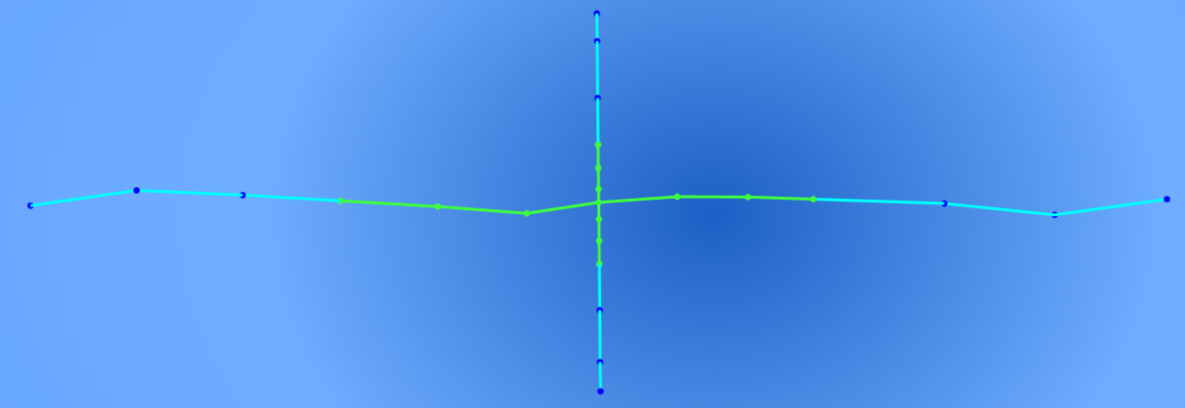
Segmented ControlPoly4´s.
Used as input for
- CubicCurve_4 (creates a new curve that is a segment of the original curve, used to control blending).
- ControlGrid44 (an atypical use, but it functions just like any other poly4).
- ControlGrid64 (an atypical use, but it functions just like any other poly4).
More information
Segmenting (sectioning, cutting) is a core Silk modeling technique, essential for blending. The current workflow uses curve segments as references to cut surfaces. There are plans to cut surfaces by drawing points directly on them, but since the same result is already achievable using curve segments, this convenience is a medium priority.
Why so much segmenting in Silk — segmenting curves, then segmenting surfaces, so much time spent aligning segmentation points? Because building off segments/pieces of a single Bezier curve or surface preserves "relatedness" between the parts. They blend well, and sections separated by gaps still feel like part of the same surface. This sense of connectedness is nearly impossible to achieve by trying to "harmonize" two curves or surfaces that were built separately and then merged. The key to blending in Silk is sharing edges between base surfaces (which are not otherwise aligned), and then blending strips of the surfaces near that shared edge. The shared edges and strips produce blends that look decent even before fine-tuning.
Control_Poly6

Create a ControlPoly6 from various inputs.
Usage
Prepare one of the following selections:
- One sketch of five lines connected end to end.
- Two extended "Node sketches" (circle + first line from its center + second line from the endpoint of the first line).
- Two CubicCurve_4 objects connected at one end — this produces a G2 blend (see "More information").
- One CubicCurve_4 object — this produces an exact match in ControlPoly6 format (see "More information").
Apply the function.
Mostly intended for blending existing Bezier curves/curve segments. It can be used directly from sketches, but this approach has limits (see "More information").
Examples of direct use:
- Use the 6 control points to directly model a curve more complex than a ControlPoly4 allows, without a blending step.
- A 3D (non-planar) ControlPoly6 can be generated from two planar "extended Node" sketches, each in a different plane.
- A 3D (non-planar) ControlPoly6 can be generated from CubicCurve_4 segments that connect at one endpoint, each coming from Node sketches in different planes.
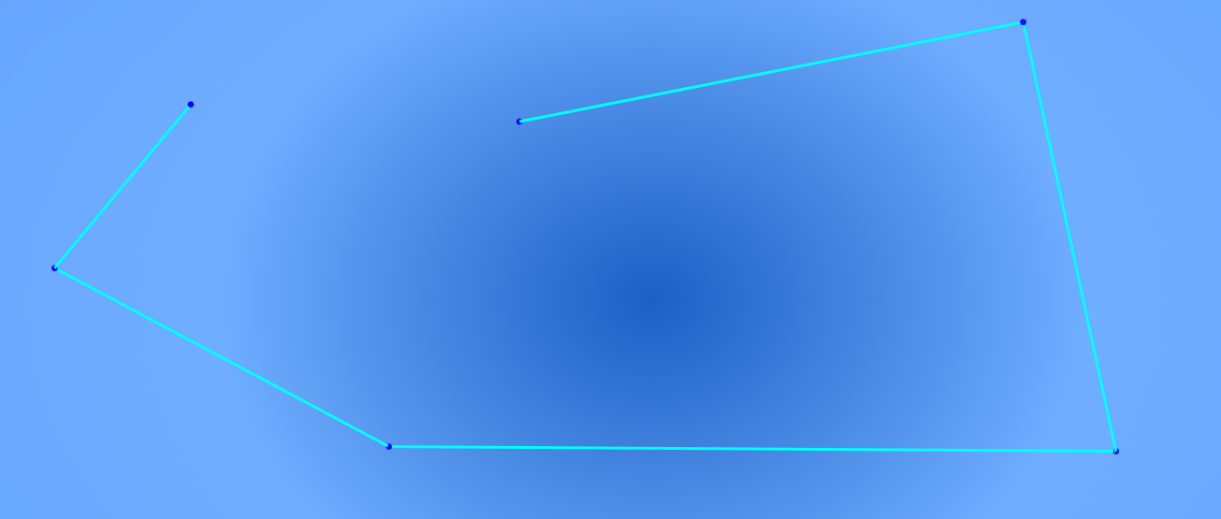
A ControlPoly6 generated from a six point line sketch.
Used as input for
- CubicCurve_6
- ControlGrid64
- ControlGrid66
More information
There are many warnings below, but they boil down to this: if you like it, use it; if you want to play it safe, use it as little as possible.
This control polygon is used to produce non-Bezier cubic curves and/or surfaces (number of control points greater than degree + 1). It only guarantees G2 internally. Its benefit is that it allows controlling curvature at connection points/edges to cubic Bezier curves/surfaces, which is why it is mostly intended for blending existing Bezier curves/curve-segments.
- This is Bezier curve blending, the main use case, and it offers a good preview of how blending grids/surfaces will work. The hard corner between the two Bezier curves disappears, and the start and end of the poly match the original curves up to G2.
- If you choose to build ControlPoly6, ControlGrid64, and ControlGrid66 objects manually, you will likely sometimes find yourself with a ControlPoly4 or a CubicCurve_4 in a location where a ControlPoly6 would be preferable. Silk can always convert a CubicCurve_4 to a ControlPoly6 exactly; the reverse is not true. All Beziers have an exact matching ControlPoly6, but a random ControlPoly6 does not generally have a matching Bezier.
- 6-point cubic curves/surfaces are intended to be generated automatically by other tools, because of their G2 connection properties. Even when generated automatically, this poly is not generally recommended for direct use in building grids/surfaces (though it is allowed). The one genuinely valuable use case, in the context of the official workflow, is studying a set of Beziers and their blends in 2D before building the surfaces in 3D — very useful, for example, on the mirror plane of a design when it is not yet certain how many Beziers and blends the design requires.
Curves
CubicCurve_4

Creates a CubicCurve_4 from a ControlPoly4.
Usage
Preselect one of the following:
- One ControlPoly4.
- One ControlPoly4_segment.
Apply the function.
This is a Bezier cubic curve. All editing is done by editing the ControlPoly4.
The main purpose of creating curves is to preview what the edges of a surface will look like if the input poly is used in a control grid (curves themselves are not used directly to make surfaces, but they can share polys with them). Curves are also used by cutting them into segments, which in turn defines how to cut surfaces for blending.
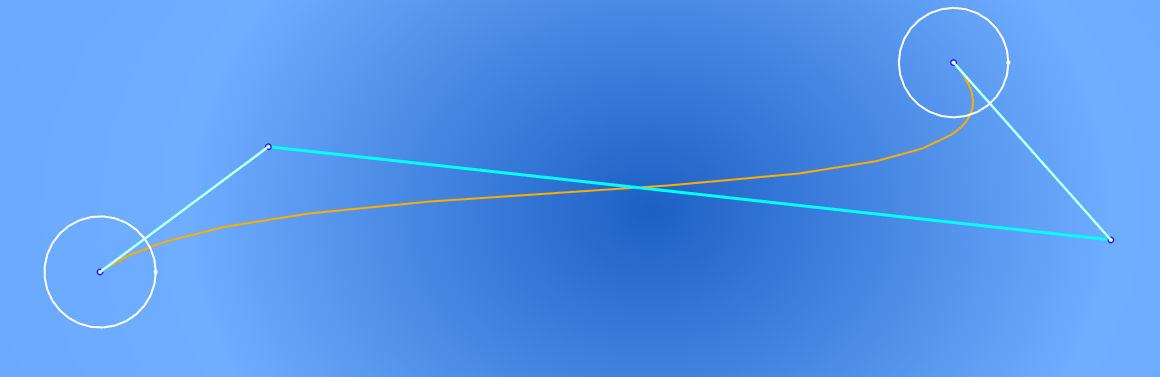
A CubicCurve_4 previewing the edge of a future surface
Used as input for
- Point_onCurve (a marker to subdivide the curve with ControlPoly4_segment)
- Two CubicCurve_4 objects that touch at one end can be used to generate a blend poly with the ControlPoly6 tool (not a beginner topic).
More information
This is a Bezier cubic curve. A NURBS is Bezier when the number of control points equals the degree + 1. A cubic (degree 3) therefore has 4 control points. Beziers are the smoothest, highest quality NURBS. However, it is difficult to connect several of them in a satisfying manner. It is relatively easy to obtain tangency (G1) by aligning certain control points, but difficult to obtain curvature matching (G2), as this involves adjusting multiple control points at the same time. G3 is very difficult, and arguably pointless: in the attempt to smooth the join of two Beziers to G3, the control points must be moved to the point where one or both curves/surfaces become unrecognizable.
So why use Beziers at all? They are still the best choice for individual curves/surfaces, and sometimes G1 is good enough to use them directly. For higher-quality work, Silk's design strategy is to use multiple Beziers for the broad strokes of the design, let them meet at sharp angles along a shared edge, and finally trim back and blend. This is not a new idea — the most expensive surfacing software for industrial design uses the same strategy: Bezier as far as it will take you, then careful blending of the edges/joints (Silk does not attempt to fully emulate those programs; this is just one point in common).
Silk currently only works with cubics, but the plan is to move to degree 4 (5 control points), degree 5 (6 control points), and so on, as development continues. A few more functions are needed before cubics are considered "done." When higher degrees are introduced, cubics will remain the bread and butter of design — higher degrees will only be used when strictly necessary, since they are harder to use (someone has to define all those extra control points).
CubicCurve_6

Creates a CubicCurve_6 from a ControlPoly6.
Usage
Prepare the following selection:
- One ControlPoly6.
Apply the function.
A 6-control-point cubic NURBS curve. G2 continuous throughout; G3 continuous throughout except at two points along the curve, where it is G2 only. The practical use of this curve is to preview blends on curves before doing the full work of blending surfaces.
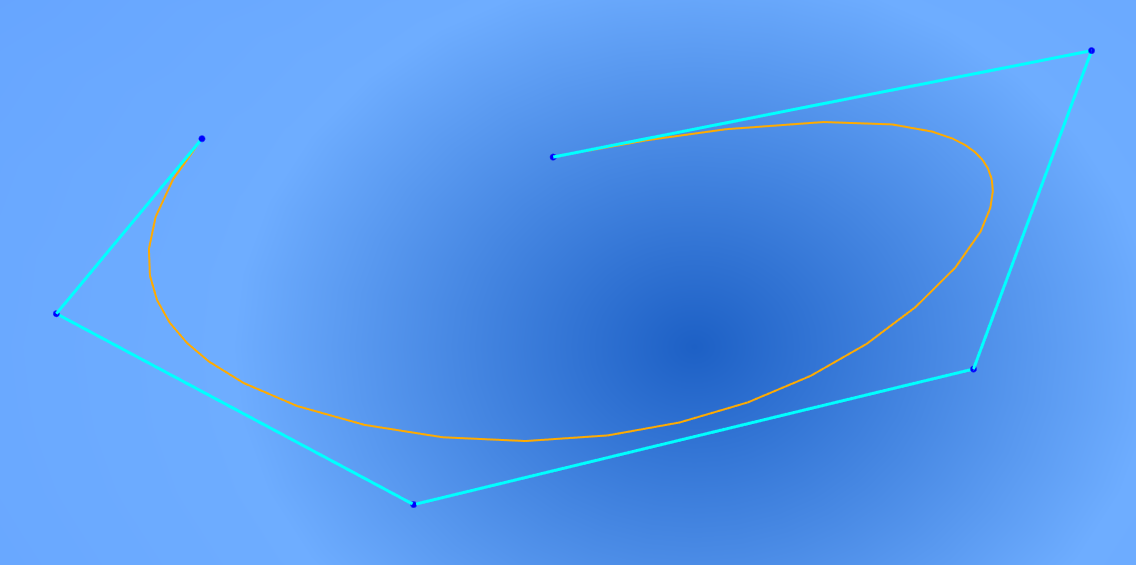
A CubicCurve_6 previewing a cubic curve.
Used as input for
- This is currently an endpoint in the Silk design workflow.
- The input ControlPoly6 can be used to build grids and surfaces; alternatively, this curve can be used with the rest of FreeCAD — extruded, revolved, etc. — if curve design is all that is needed from Silk.
Primary Grids
ControlGrid44

Create a ControlGrid44 from four connected ControlPoly4 edges.
Usage
Prepare the following selection:
- Four ControlPoly4 objects that form a loop.
- The ControlPoly4 objects should only touch at their endpoints, and form a distinct angle where they meet.
- Select each edge in the loop sequentially, counter-clockwise, looking from the "outer side" of the surface to be created.
Apply the function.
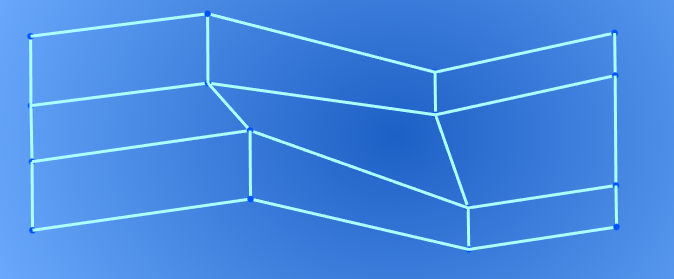
A ControlGrid44 built from four ControlPoly4 edges
Used as input for
- CubicSurface_44 (creates a smooth cubic Bezier surface).
- ControlGrid64_2Grid44 (creates a blend grid to join surfaces).
More information
Silk performs its first useful task beyond using existing FreeCAD functions and forcing a particular input format: it generates the inner control points of the grid based on the polys. This is not the only way to generate the inner control points, but it is a solid default starting point. The user provides 12 points through the polys, and Silk provides 4 more. 4 out of 12 doesn't seem like much, but it snowballs from here — the rest of the tools will generate tens and hundreds of useful control points with less and less input required from the user at each step.
Tangency rules
If adjacent CubicSurface_44 objects are not going to be segmented and blended, their ControlGrid44 objects must follow strict rules to achieve tangency (G1) across the shared edge (picture two grids/surfaces side by side, left and right):
- There must be a shared edge (G0) in the middle — the entire edge. This is done by selecting the same poly for that edge in both grid creations. Do not trace, approximate, copy, or link the poly — use the same object in both grid creations.
- The legs of the polys that meet on the shared edge must be collinear (aligned/parallel).
- The ratio of the lengths of the poly legs that meet on the shared edge must be equal. For example, if the top poly on the left grid has a last leg of length 3, meeting a leg of length 1 on the top of the right grid, the tangency ratio is 3:1 from left to right. If the bottom poly on the left grid then has a last leg of length 5, the connecting poly on the right grid must have a first leg of length 2 (keeping the 3:1 ratio). This ratio rule does not apply if all poly legs are parallel across the shared edge.
- Users do not need to do anything beyond preparing the polys correctly — if the polys follow these rules, the generated adjacent grids will always be G1, since Silk calculates all of the surface's internal control points (the ones not on edges).
Following tangency rules (G1) forces changes to the polys, which changes the entire surface. When a surface should not be modified, it is blended instead of aligned. G1 alignment is useful for patching small holes, or for connecting to planes, cylinders, and spheres.
Optional — flawed, use with caution: selecting 3 connected ControlPoly4 edges produces a "triangle" grid, which yields a lower-quality surface. The "triangle" has a degenerate (collapsed) edge between the first and third selected polys, because internally this grid still has as many points and lines as a four-sided grid; the collapsed lines and points cause visible defects in the surface, and make further operations with this grid (or surfaces built from it) difficult or even impossible. This "triangle" does respect tangency rules and will connect cleanly to other grids despite its inner flaw. In fact, conforming to G1 on the edges makes it particularly flawed and ugly on the inside. Removing this option is being considered, but it remains for now, since some users want it despite the warnings.
ControlGrid44_Rotate

Creates a ControlGrid44 from three ControlPoly4 edges.
Usage
Prepare the following selection:
- Three ControlPoly4 objects that form a loop.
- The ControlPoly4 objects should only touch at their endpoints, and form a distinct angle where they meet.
- Select each edge in the loop sequentially, counter-clockwise, looking from the "outer side" of the surface to be created.
Apply the function.
Produces a "triangle" surface that "rotates" from the first edge selected to the third, following along the second edge. Order is "left, bottom, right," with the rotational pivot at the "top" corner.
Typical use is to merge a set of surfaces to a point (such as closing a tube). Also used to interface with spheres and ellipsoids.
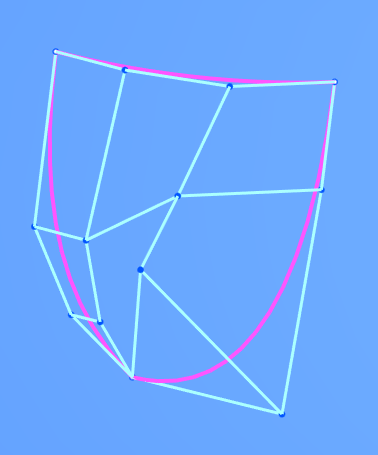
A rotate grid merging three poly edges to a point
Used as input for
- CubicSurface_44
- ControlGrid64_2Grid44
More information
This is a degenerate grid (one edge collapsed to a point) that results in a "revolve"-like surface. Produces true spheres from arc polys, true ellipsoids from ellipse-arc polys, but also accepts non-arc polys.
Surface tangency across multiple grids can be achieved automatically from well-prepared arcs of circles and ellipses, but using general curves as input does not have an easily predictable outcome, and additional blending may be required.
Although degenerate, this grid is the correct way to interface with spheres, since it does not introduce additional collapsed edges — in this particular case, the NURBS degeneracy is not a flaw at all, but a standard CAD construct.
A four-sided version able to create true tori (and sphere strips) is planned, but not yet ready.
ControlGrid44_flow

In development — partial, useful result.
Create a ControlGrid44_flow from a ControlGrid44.
Usage
Prepare the following selection:
- One ControlGrid44.
Apply the function.
The output grid will have more gradual internal changes, at the cost of less predictable tangency across edges. This can help untangle and "puff up" basic grids. Various parameters allow scaling of the effect, restoring specific tangencies, and maintaining G1 "mirrorability" in the plane of each edge (if the edge was planar and G1-mirrorable in the original grid).
Used as input for
- CubicSurface_44
- ControlGrid64_2Grid44
- Anywhere a ControlGrid44 would be used as input — even as input into another ControlGrid44_flow object (there is no clear reason to do this, but it is possible).
ControlGrid64

Create a ControlGrid64 from two ControlPoly4 and two ControlPoly6 objects matching on opposite edges.
Usage
Select each edge in sequence (4, 6, 4, 6), counter-clockwise, looking from the outer side.
Apply the function.
Used to create mixed-degree contour surfaces.
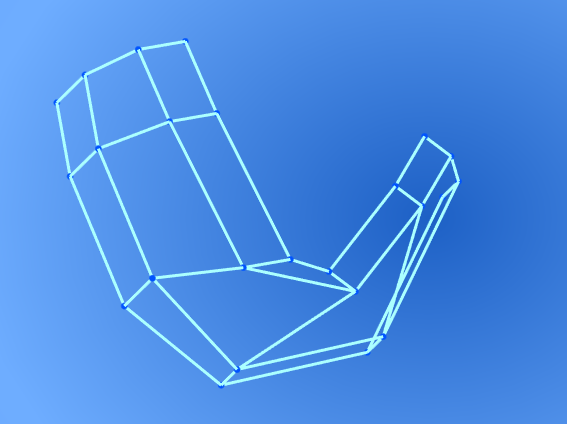
A ControlGrid64 mixing 4-point and 6-point edges
Used as input for
- CubicSurface_64
More information
Typically, grids of this type (64) are created automatically by other tools. Manually creating this type of grid (and its associated surface) directly from polys has limitations, because they cannot (yet) be segmented or blended. They remain compatible with all tools that take a ControlGrid64 as input, even though those tools assume the grids were generated automatically.
When segmentation becomes available, the grid/surface will be cut into three ControlGrid44 objects at preset locations — an exact conversion with no loss of precision. These three pieces will then be workable through all the tools available for ControlGrid44 and CubicSurface_44 objects.
ControlGrid66

Create a ControlGrid66 from four connected ControlPoly6 edges.
Usage
Select each ControlPoly6 sequentially, counter-clockwise, looking from the outer side.
Apply the function.
6-point edges cannot (yet) be blended with Silk tools, so this grid and its associated surface are a final product at this stage.
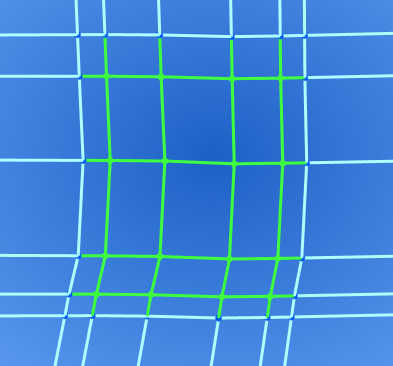
A ControlGrid66 built from four ControlPoly6 edges
Used as input for
- CubicSurface_66
Surfaces
CubicSurface_44

Create a cubic surface from a ControlGrid44.
Usage
Prepare the following selection:
- One ControlGrid44 of any type (made from polys, by segmenting, etc.).
Apply the function.
This is a Bezier cubic surface, intended as the basic "building block" surface that complex models are based on. All editing is done by editing the ControlGrid44 (refer to the ControlGrid44 tooltip and its "More information" section for design rules).
Can be used for hard-edge surfacing, or manually aligned for tangency (G1). Can also be blended along hard edges with other CubicSurface_44 objects (by way of ControlGrid64 objects), for high continuity (G2).
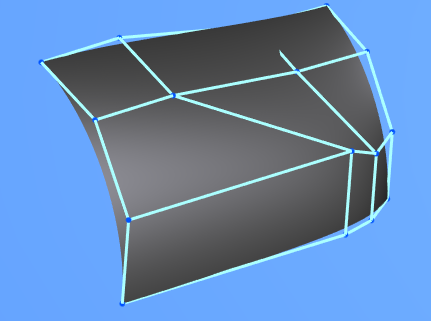
A CubicSurface_44 built from a ControlGrid44
Used as input for
- ControlGrid44_EdgeSegment (a 44 grid corresponding to a "full strip" segment of the surface).
- ControlGrid44_2EdgeSegments (a 44 grid corresponding to a "rectangular" segment of the surface).
More information
This does for the ControlGrid44 object what CubicCurve_4 does for the ControlPoly4. Refer to the extensive description given for CubicCurve_4 — those comments apply here to the surface rather than just a curve.
ControlGrid44 objects manually built from polys are almost always intended to be used by surfaces, but many automatically created ControlGrid44 objects are intended to be consumed by blend grids. Because of these different possible paths, grid creation is kept separate from surface creation, so a useful grid is not locked inside a surface and remains accessible to other operations. At some point in the future, it is planned to allow clicking a surface where a grid is expected, automatically finding the grid inside the surface, so tools can use either the grid or the surface as needed — this is straightforward but requires a fair amount of programming work. For now, the exact object type needed must be fed directly into each function.
CubicSurface_64

Creates a CubicSurface_64 from a ControlGrid64 of any type.
Usage
Select one ControlGrid64 object.
Apply the function.
Used for mixing four-point and six-point polys/edges, or for blending edges of four-point contours. Can produce blends along the edges of CubicSurface_44 objects. The edges touching the blended objects are four-pointed; the edges reaching from one blended object to the other are six-pointed. This is still a cubic grid/surface in both directions, but one direction is now Bezier (4 points) while the other is not (6 points). The price of the extra control points is that this surface is only guaranteed G2 internally along the 6-point direction (it may be G3 under the right setup); it remains Bezier and G3 along the 4-point direction.
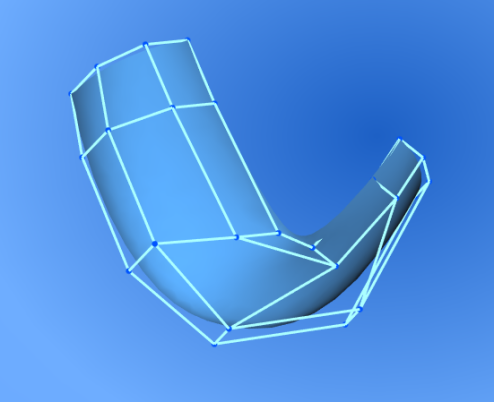
A CubicSurface_64 blend between two CubicSurface_44 objects
CubicSurface_66

Create a CubicSurface_66 from a ControlGrid66.
Usage
Select one ControlGrid66.
Apply the function.
Mainly intended to be applied to automatically generated grids. Can also be used manually for hard-edge surfacing, manually aligned for tangency, or even manually aligned for G2 (very difficult and limited).
6-point edges cannot (yet) be blended with Silk tools.
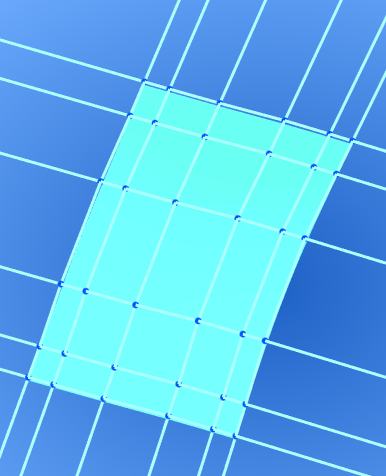
A CubicSurface_66 surface
More information
This is still a cubic surface (degree 3), but no longer Bezier, so additional control points are allowed. The price of these extra control points is that this surface is only guaranteed G2 internally (it may be G3 under the right setup).
When segmentation becomes available, the grid/surface will be cut into nine ControlGrid44 objects at preset locations — an exact conversion with no loss of precision. These nine pieces will then be workable through all the tools available for ControlGrid44 and CubicSurface_44 objects.
Segment Grids
ControlGrid44_EdgeSegment

Create a ControlGrid44 from a CubicSurface_44 and one CubicCurve_4 segment.
Usage
Prepare the following selection:
- First, a CubicSurface_44.
- Then, a CubicCurve_4 that matches part of an edge of that surface (see "More information").
Apply the function.
The resulting grid represents a strip of the input surface, cut in either u or v to match the CubicCurve_4 segment along the surface edge.
Used in pairs to create ControlGrid64_2Grid44, to blend edges of CubicSurface_44 objects and produce a continuous (G2) contour. Also used to re-create the portions of the original surface that are to be preserved and not blended.
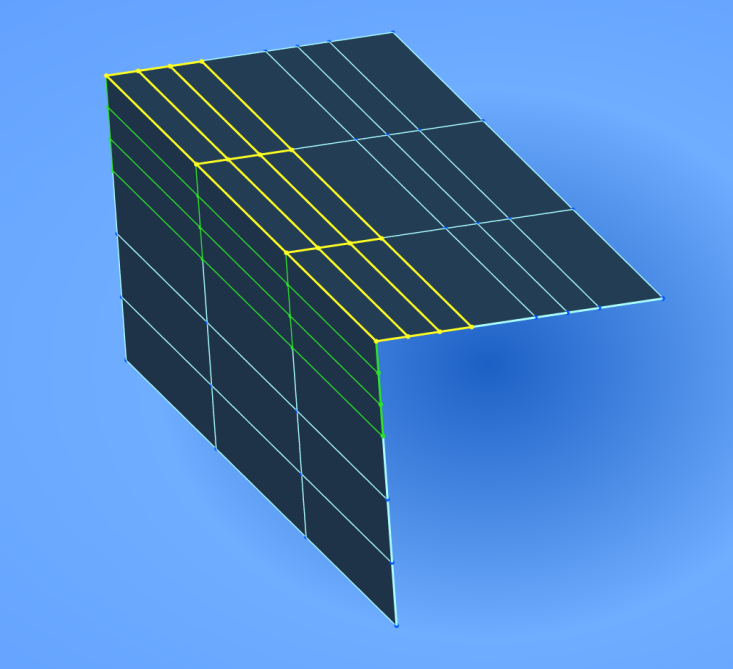
A full-strip edge segment cut from a CubicSurface_44
Used as input for
- CubicSurface_44
- ControlGrid64_2Grid44
More information
How to prepare selection item 2, "a CubicCurve_4 that matches part of an edge of that surface"? If the previous tools have already been used, almost everything needed is already in place. (If you are reading ahead before trying, the explanation below may seem convoluted.)
The edge of a surface cannot yet be cut/segmented directly with points. Instead, a CubicCurve_4 matching the entire edge of the surface is cut. This separate CubicCurve_4 is obtained by using the same poly that went into the surface's grid — so if curves were applied to the polys along the way (recommended), this edge curve already exists in the model. Segment this curve by creating 2 Point_onCurve objects, a ControlPoly4_segment, and applying a CubicCurve_4 to that segment.
(This direct-cutting feature is planned, but since a practical workaround already exists, it is a low priority.)
ControlGrid44_2EdgeSegments

Create a ControlGrid44 from a CubicSurface_44 and two CubicCurve_4 segments.
Usage
Prepare the following selection:
- First, a CubicSurface_44.
- Then, a CubicCurve_4 that matches part of an edge of that surface (see "More information").
- Then, another CubicCurve_4 that matches part of an adjacent edge of that surface (the two partial curves cannot be on opposite edges of the surface).
Apply the function.
The resulting grid represents a "rectangular" cut of the input surface, cut in both u and v to match the CubicCurve_4 segments along the surface edges.
Used in pairs to create ControlGrid64_2Grid44, to blend edges of CubicSurface_44 objects and produce a continuous (G2) contour. Also used to re-create the portions of the original surface that are to be preserved and not blended.
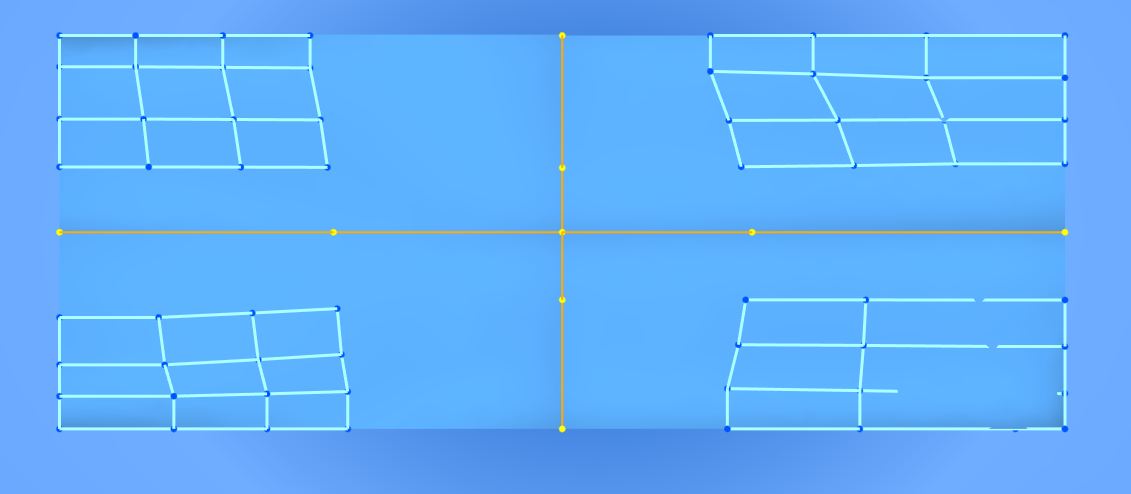
A rectangular corner segment cut from a CubicSurface_44
Used as input for
- CubicSurface_44 (to remake a surface that is a portion of the original surface).
- ControlGrid64_2Grid44 (to prepare a blend grid that aligns well with the original surface).
- ControlGrid64_3_1Grid44 (rounds off one corner of the grid — see that tool's tip).
More information
See the "More information" section of ControlGrid44_EdgeSegment for how to prepare the CubicCurve_4 segments used in selection items 2 and 3 — the same technique applies here.
StarTrim_CubicNStar

Create a StarTrim_CubicNStar object from a CubicNStarSurface_NStar66 object.
Usage
Select one CubicNStarSurface_NStar66.
Apply the function.
Useful for eliminating pinching in poor corner geometry; can be patched with a standard Filling surface.
Blending Grids
ControlGrid64_2Grid44 (Blend Tool)

Create a ControlGrid64_2Grid44 from two ControlGrid44 objects that share a corner.
Usage
Select two grids that share an edge.
Apply the function.
.png)
A blend grid joining two ControlGrid44 edge segments
Used as input for
- Used to blend the edge of two surfaces segmented with ControlGrid44_EdgeSegment.
- CubicSurface_64
ControlGrid64_3_1Grid44

Usage
Select a ControlGrid44 by one of its corner points in the 3D view, and apply the function.
This results in a "triangle" grid that "flows" to eliminate the selected corner.
Typical use is to round a corner in a set of surfaces segmented from a larger surface. The two edges remaining from the original grid are of type poly4, and the new curved edge is of type poly6 (a fully collapsed poly6 edge is hidden where the two edges of the original grid met).
This grid is not intended to produce a final surface, but is instrumental as a stepping stone: a high-quality surface is built off the new curved edge, which eventually replaces this "triangle."
Used as input for
- CubicSurface_64 (temporary and cheap visualization).
- SubGrid33_2Grid64 (the next step towards a high-quality surface along the curved edge of the triangle).
Sub-Grids
SubGrid33_2Grid64

Usage
Select two ControlGrid64 objects meeting at a corner to generate a corner-blend partial grid (a first step towards filling a four-sided hole where four blend grids/surfaces meet).
Apply the function.
Intended for the case where the two ControlGrid64 objects are blend grids that have segments of one common surface as inputs. The two blends "extend" the common surface, and this partial grid effectively extends the common surface into the corner gap.
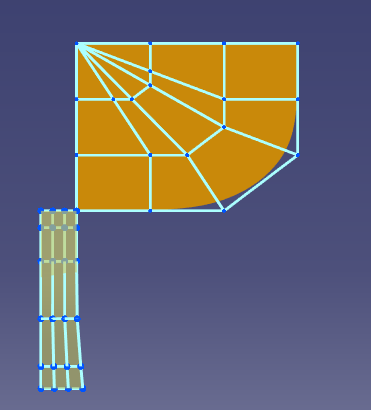
Two ControlGrid64 blend grids meeting at a corner, before the sub-grid
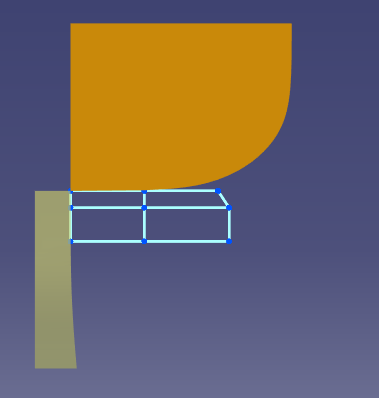
The resulting SubGrid33 partial grid extending into the corner gap
Used as input for
- ControlGrid66_4Sub
More information
When blending surfaces across perpendicular edges, a gap/hole appears at the corner, because both blends must be "set back" so they don't overlap each other. This object is a partial grid that extends both input ControlGrid64 objects "into" the gap, beginning the process of filling that gap. After making four of these objects, one for each corner of the hole, use ControlGrid66_4Sub to create the complete grid. The surface made from this grid (using CubicSurface_66) will then bridge across all four blends, giving good continuity with the original surfaces.
ControlGrid66_4Sub

Usage
Select 4 related SubGrid33_2Grid64 objects in a loop to form a ControlGrid66_4Sub object (read the SubGrid33_2Grid64 description first).
Apply the function.
Fills four-sided holes between blends (only four-sided holes). Produces a fairly high-quality final surface; other tools handle 3-, 5-, 6-, 7-sided (etc.) holes, but with lower-quality results.
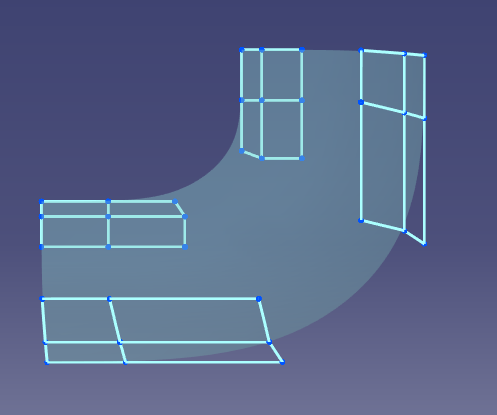
Four SubGrid33 partial grids around a four-sided corner hole, before joining
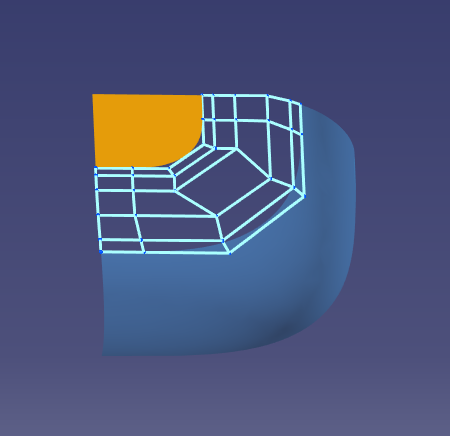
The finished ControlGrid66_4Sub filling the corner hole
Used as input for
- CubicSurface_66
More information
When blending surfaces across perpendicular edges, a gap/hole appears at the corner, because both blends must be "set back" so they don't overlap. This object joins the SubGrid33 partial grids that extend both input ControlGrid64 objects "into" the gap, creating a single grid. The surface made from this grid (using CubicSurface_66) then bridges across all four blends, giving good continuity with the original surfaces.
Proven use cases (with reasonably high-quality results):
- Four surfaces sharing a single corner, with edges matched between them in pairs (a 2×2 "square" setup of 4 surfaces). Segment and set back the shared edges, blend them, build corner SubGrids, and join them with this tool to fill the hole where the shared corner was — the result is a smooth transition across the four original faces.
- Three surfaces meeting to form a hard corner (like a cube corner). This requires more sectioning of the original surfaces: the result is 2 small blends and one larger blend. Use ControlGrid64_3_1Grid44 opposite the large blend to create a fourth blend, giving 4 blends across the 3 surfaces, from which the 4 SubGrids can be made. The resulting grid/surface produces a "rolling fillet" corner between the two small blends and the large blend.
SubGrid63_2Surf64

Create a SubGrid63 sub-grid from two CubicSurface_64 surfaces.
Usage
Select two CubicSurface_64 objects that share a corner.
Apply the function.
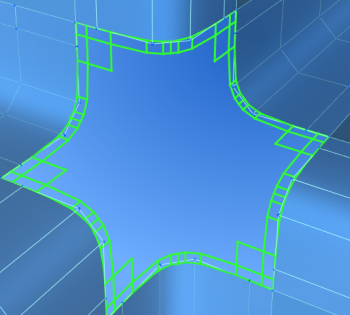
A SubGrid63 corner piece built from two CubicSurface_64 surfaces
Used as input for
- ControlGridNStar66, to blend three or more blended edges meeting at a corner.
ControlGridNStar66

Creates a ControlGridNStar66 from three or more SubGrid63_2Surf64 objects.
Usage
Select from three to six SubGrid63_2Surf64 objects sequentially, counter-clockwise, looking from the outer side.
Apply the function.
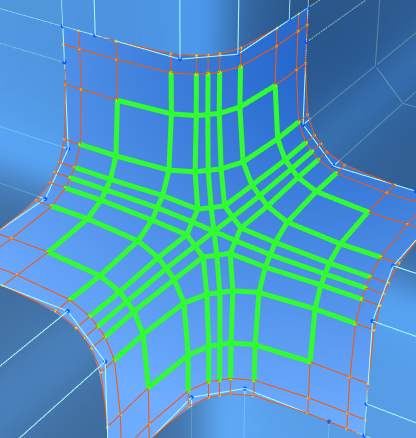
An N-star grid blending a star-shaped corner where multiple surfaces meet
Used as input for
- Used to create a ControlGridNStar66 to blend a corner where three or more CubicSurface_64 objects meet.
- CubicNStarSurface_NStar66
Sub-Surfaces
CubicNStarSurface_NStar66

Creates a CubicNStarSurface_NStar66 from a ControlGridNStar66.
Usage
Select one ControlGridNStar66.
Apply the function.
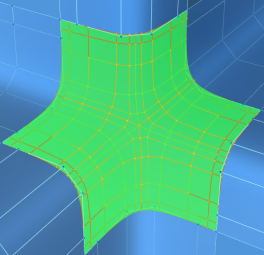
The finished N-star surface filling a multi-sided corner
Used as input for
- Used for filling the corner of blended Silk surfaces.
Utilities
Reload_Silk

Reload the Silk workbench (specifically, just its core library) without exiting FreeCAD, after making code changes.
Installation
Recommended install is via the  Addon Manager found under the Tools → Addon Manager menu.
References
- Author: @edwardvmills
- Source: https://github.com/edwardvmills/Silk
- Docs: http://edwardvmills.github.io/NURBSlib_EVM/ & https://github.com/edwardvmills/Silk/wiki
- Thread: https://forum.freecad.org/viewtopic.php?t=23243
- Issues: https://github.com/edwardvmills/Silk/issues
 User documentation
- Getting started
- Installation: Download, Windows, Linux, Mac, Additional components, Docker, AppImage, Ubuntu Snap
- Basics: About FreeCAD, Interface, Mouse navigation, Selection methods, Object name, Preferences, Workbenches, Document structure, Properties, Help FreeCAD, Donate
- Help: Tutorials, Video tutorials
- Workbenches: Std Base, Assembly, BIM, CAM, Draft, FEM, Inspection, Material, Mesh, OpenSCAD, Part, PartDesign, Points, Reverse Engineering, Robot, Sketcher, Spreadsheet, Surface, TechDraw, Test Framework
- Hubs: User hub, Power users hub, Developer hub