TechDraw ComplexSection/en


|
|
| Menu location |
|---|
| TechDraw → TechDraw Views → Complex Section View |
| Workbenches |
| TechDraw |
| Default shortcut |
| None |
| Introduced in version |
| 0.21 |
| See also |
| TechDraw Section, TechDraw View |
Description
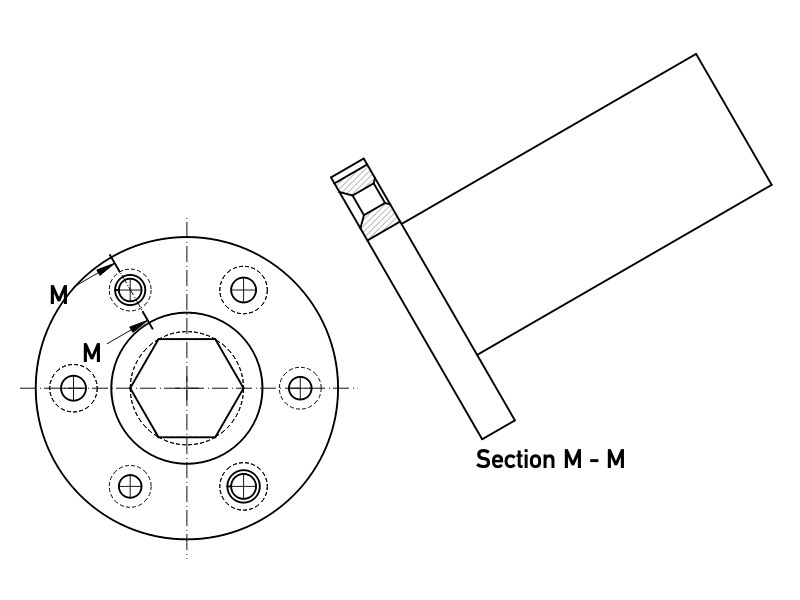
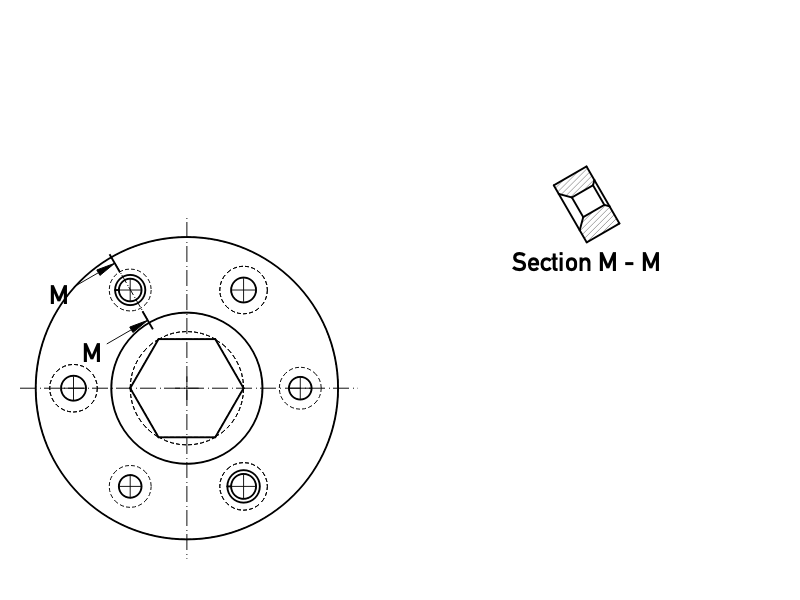
The TechDraw ComplexSection tool inserts a cross-section view based on an existing Part View and a profile.

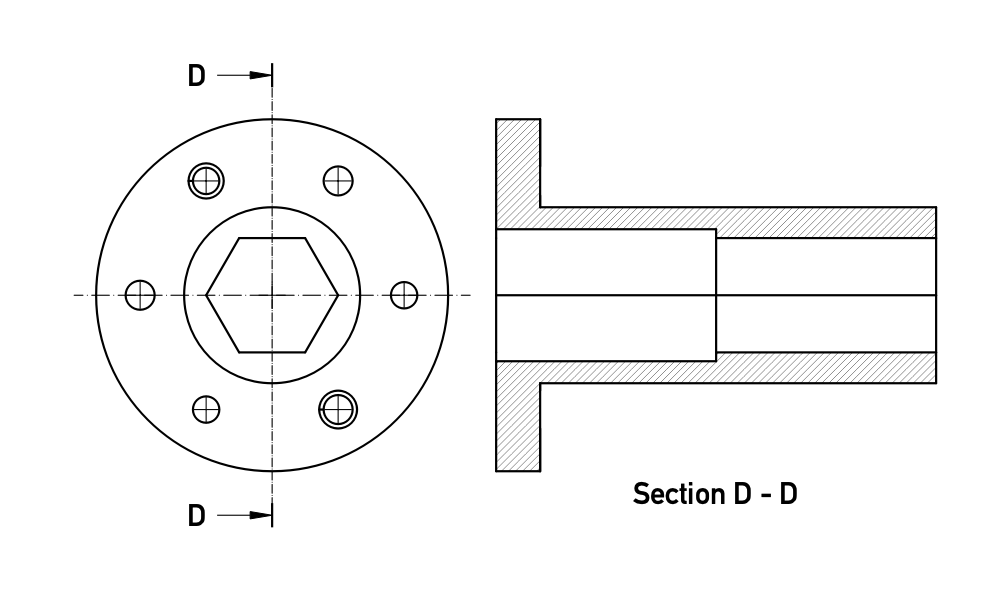
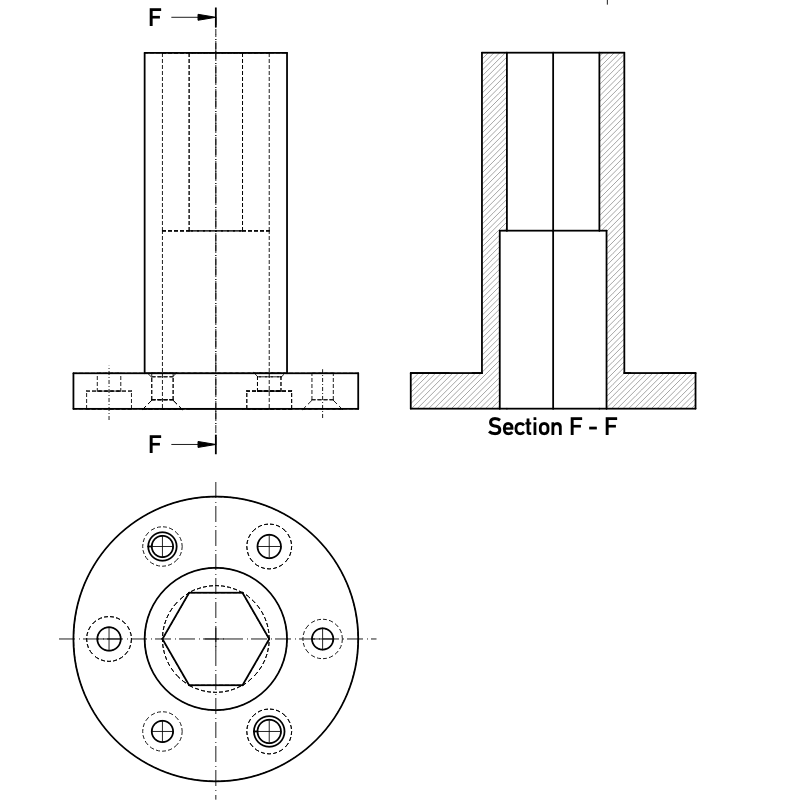
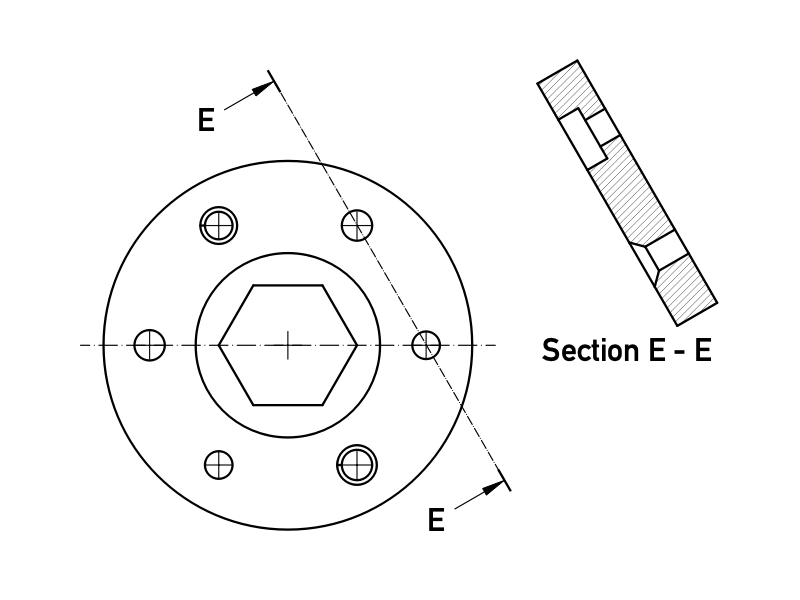
A Quarter section view created with this tool

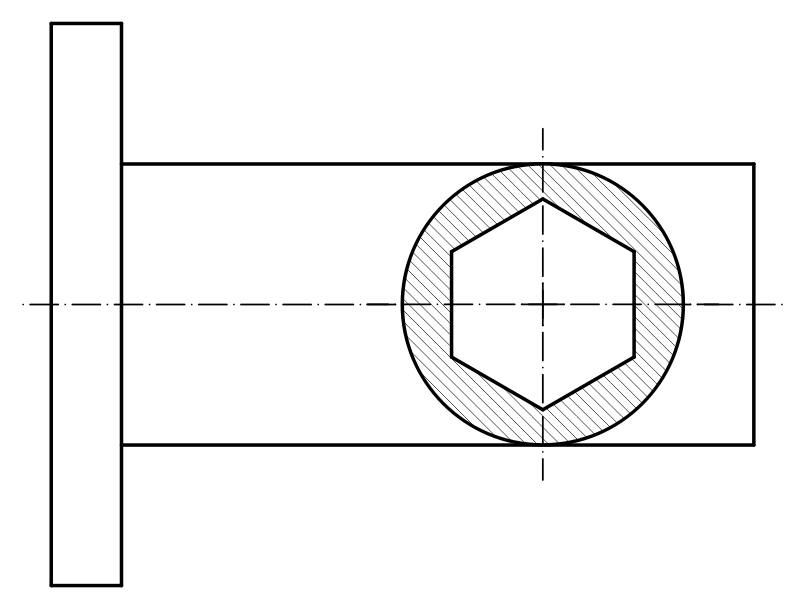
An Aligned section view created with this tool

An Offset section view created with this tool
Usage
- Select a Part View and a profile object in the 3D View or Tree View. Profiles are typically sketches, but any object whose shape can be made into a wire will work.
- There are several ways to invoke the tool:
- Press the
 Complex Section View button.
 - Select the TechDraw → TechDraw Views → Complex Section View option from the menu.
- Press the
- A task panel opens which will help calculate the various properties. Reasonable values for the view Direction are calculated, but these can be changed.


Properties
A Complex Section, formally a TechDraw::DrawComplexSection object, is derived from a Section View, formally a TechDraw::DrawViewSection object, and inherits all its properties. It also has the following additional properties:
Data
Cutting Tool
- DataCutting Tool Wire Object: The document object whose shape will be used to generate the cutting profile.
- DataProjection Strategy: Controls how the cut is performed and how the result is projected on the page:
Offset: Performs a simple cut of the Source shape and projects the result.Aligned: Cuts the Source shape using a tool created from each segment (edge) of the cutting profile. The results of each cut are projected in a vertical or horizontal array, depending on the orientation of the cutting profile.NoParallel: As Aligned, but profile segments which are parallel to the view direction are skipped.
Notes
- The DataSection Normal (
Vector) property controls which side of the profile is removed and should point generally in the opposite direction of the line of sight represented by the arrows on the section line. Avoid selecting a DataSection Normal (Vector) that is parallel to profile segments (especially the first and last segments) as this prevents the correct calculation of section arrow direction and may generate reversed views. - See also TechDraw SectionView
Scripting
See also: Autogenerated API documentation and FreeCAD Scripting Basics.
A Complex Section can be created with macros and from the Python Console by using the following functions:
doc = FreeCAD.ActiveDocument
box = doc.Box
profile = doc.Sketch
page = doc.Page

view = doc.addObject("TechDraw::DrawViewPart", "View")
page.addView(view)
view.Source = box
view.Direction = (0, 0, 1)

section = doc.addObject("TechDraw::DrawComplexSection", "ComplexSection")
page.addView(section)
section.BaseView = view
section.CuttingToolWireObject = profile
section.Direction = (0, 1, 0)
section.SectionNormal = (-1, 0, 0)
Examples
For some more information about section views and some use cases, have a look at: TechDraw section examples.
 TechDraw
- Pages: Insert Default Page, Insert Page using Template, Update template fields, Redraw Page, Print All Pages, Export Page as SVG, Export Page as DXF
- Views:
- TechDraw views: Insert View, Insert Broken View, Insert Section View, Insert Complex Section View, Insert Detail View, Insert Projection Group, Insert Clip Group, Insert SVG Symbol, Insert Bitmap Image, Share View, Turn View Frames On/Off, Project Shape
- Views from other workbenches: Insert Active View, Insert Draft Workbench Object, Insert BIM Workbench Object, Insert Spreadsheet View
- Stacking: Move view to top of stack, Move view to bottom of stack, Move view up one level, Move view down one level
- Dimensions: Insert Dimension, Insert Length Dimension, Insert Horizontal Dimension, Insert Vertical Dimension, Insert Radius Dimension, Insert Diameter Dimension, Insert Angle Dimension, Insert 3-Point Angle Dimension, Insert Area Annotation, Create Arc Length Dimension, Insert Horizontal Extent Dimension, Insert Vertical Extent Dimension, Create Horizontal Chain Dimensions, Create Vertical Chain Dimensions, Create Oblique Chain Dimensions, Create Horizontal Coordinate Dimensions, Create Vertical Coordinate Dimensions, Create Oblique Coordinate Dimensions, Create Horizontal Chamfer Dimension, Create Vertical Chamfer Dimension, Insert Balloon Annotation, Insert Axonometric Length Dimension, Insert Landmark Dimension, Dimension Repair, Link Dimension to 3D Geometry
- Hatching: Hatch Face using Image File, Apply Geometric Hatch to Face,
- Annotations: Insert Annotation, Add Leaderline to View, Insert Rich Text Annotation, Add Cosmetic Vertex, Add Midpoint Vertices, Add Quadrant Vertices, Add Centerline to Faces, Add Centerline between 2 Lines, Add Centerline between 2 Points, Add Cosmetic Line Through 2 points, Add Cosmetic Circle, Change Appearance of Lines, Show/Hide Invisible Edges, Add Welding Information to Leader, Add Surface Finish Symbol, Add Hole or Shaft Tolerances
- Extensions:
- Attributes and modifications: Select Line Attributes, Cascade Spacing and Delta Distance, Change Line Attributes, Extend Line, Shorten Line, Lock/Unlock View, Position Section View, Position Horizontal Chain Dimensions, Position Vertical Chain Dimensions, Position Oblique Chain Dimensions, Cascade Horizontal Dimensions, Cascade Vertical Dimensions, Cascade Oblique Dimensions, Calculate the area of selected faces, Calculate the arc length of selected edges, Customize format label
- Centerlines and threading: Add Circle Centerlines, Add Bolt Circle Centerlines, Add Cosmetic Thread Hole Side View, Add Cosmetic Thread Hole Bottom View, Add Cosmetic Thread Bolt Side View, Add Cosmetic Thread Bolt Bottom View, Add Cosmetic Intersection Vertex(es), Add an offset vertex, Add Cosmetic Circle, Add Cosmetic Arc, Add Cosmetic Circle 3 Points, Add Cosmetic Parallel Line, Add Cosmetic Perpendicular Line
- Dimensions: Insert '⌀' Prefix, Insert '□' Prefix, Insert 'n×' Prefix, Remove Prefix, Increase Decimal Places, Decrease Decimal Places
- Miscellaneous: Remove Cosmetic Object
- Additional: Line Groups, Templates, Hatching, Geometric dimensioning and tolerancing, Preferences
 User documentation
- Getting started
- Installation: Download, Windows, Linux, Mac, Additional components, Docker, AppImage, Ubuntu Snap
- Basics: About FreeCAD, Interface, Mouse navigation, Selection methods, Object name, Preferences, Workbenches, Document structure, Properties, Help FreeCAD, Donate
- Help: Tutorials, Video tutorials
- Workbenches: Std Base, Assembly, BIM, CAM, Draft, FEM, Inspection, Material, Mesh, OpenSCAD, Part, PartDesign, Points, Reverse Engineering, Robot, Sketcher, Spreadsheet, Surface, TechDraw, Test Framework
- Hubs: User hub, Power users hub, Developer hub